Create, edit, and refine in one workspace
GPT Image 2.5
Turn text and reference photos into polished visuals with GPT Image 2.5. Create product images, text-led ads, and original artwork in your browser with Flare and Sunburst.
- Choose Flare or Sunburst
- Edit with multiple references
- Transparent backgrounds and PNG output
Compare GPT Image 2.5 image edits
Change the outfit, season, or next story beat while keeping the details that matter. Explore these GPT Image 2.5 editing examples from OpenAI's guide.
Keep the face and pose, change the styling
Give GPT Image 2.5 a person photo and clothing references, then specify the outfit to combine. Keep the original space and identity while you compare new looks.
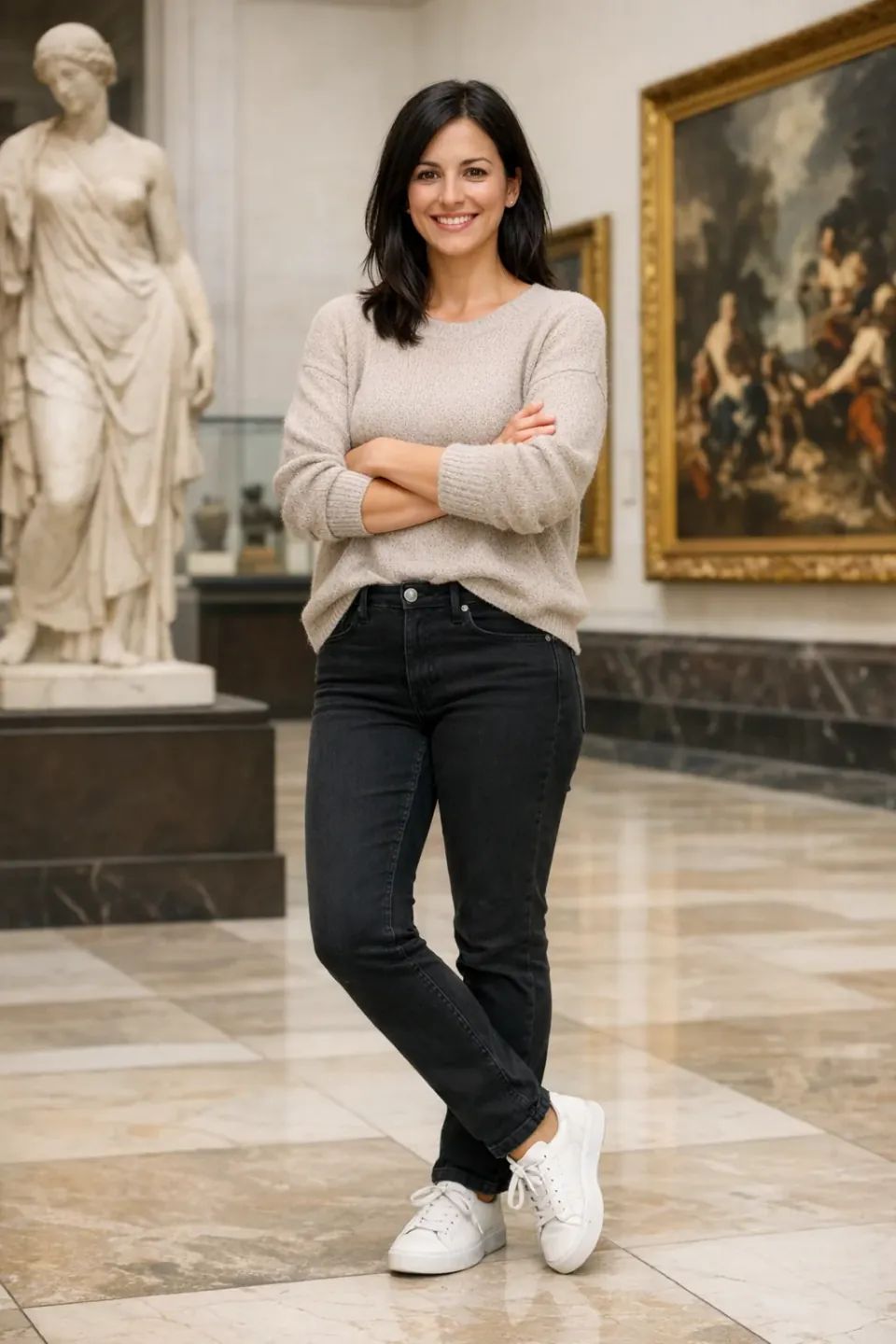 Original portrait
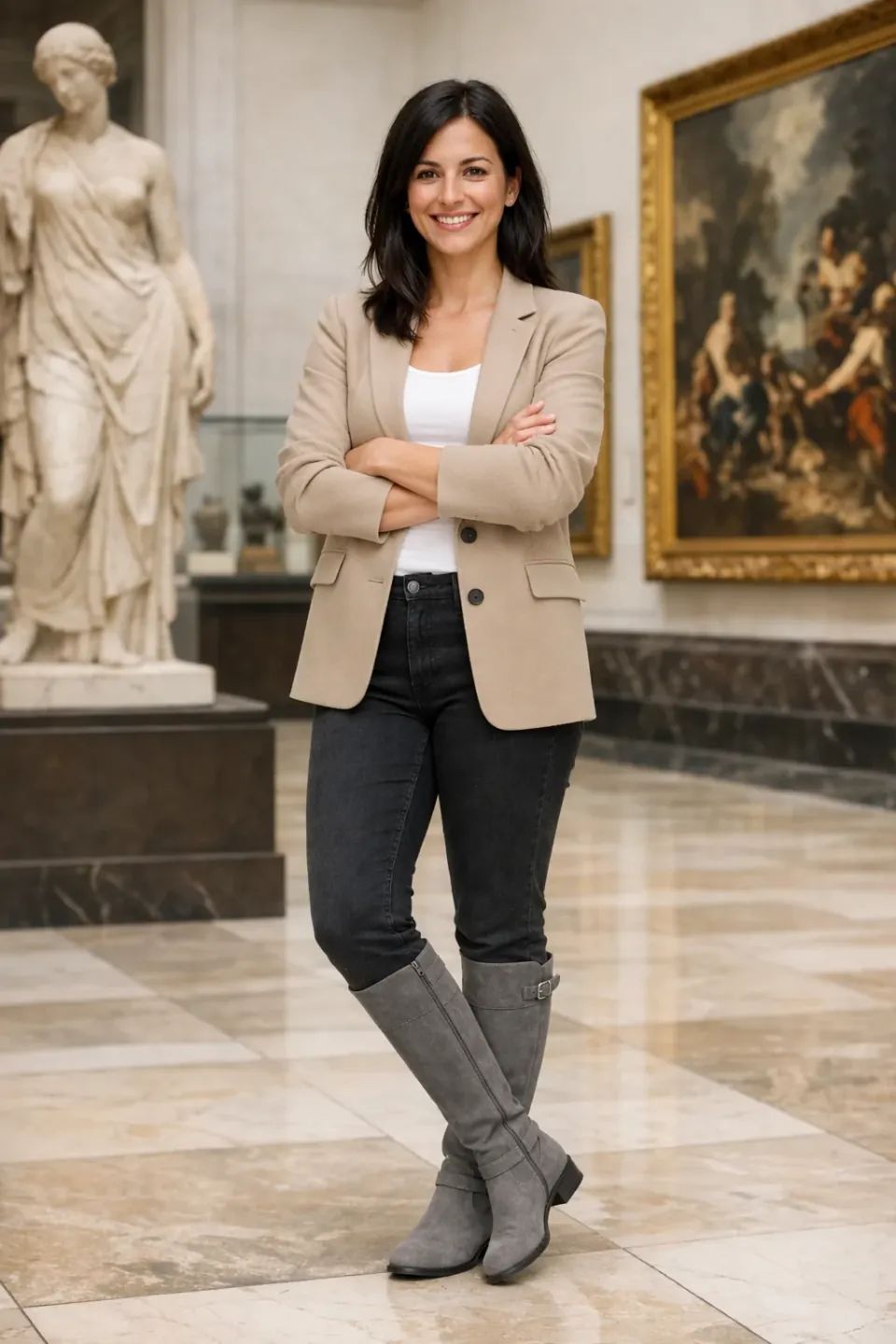 Wardrobe edit
Keep the face and pose, change the styling
Give GPT Image 2.5 a person photo and clothing references, then specify the outfit to combine. Keep the original space and identity while you compare new looks.
Original portraitWardrobe editKeep the person’s face, pose, and background. Fit the jacket, top, and boots from the reference images naturally onto the subject.
GALLERY
8 GPT Image 2.5 scenes to build on
Explore ads, product images, photos, and stories made with GPT Image 2.5. Open a scene to load its prompt and references into the generator. Images are official OpenAI examples; prompts are Mireka adaptations.
What you can make with GPT Image 2.5
Create, combine, and refine. Bring GPT Image 2.5 image generation and editing into the work you do every day.
Photorealistic texture and light
Describe skin, fabric, glass, distance, and light to shape an image with AI photo generation.
Posters and visual explainers
Give GPT Image 2.5 the headline, placement, and information order for a strong first draft of an ad or educational graphic. GPT Image 2.5 keeps the brief focused on the message.
Combine multiple references
Bring separate images for a person, outfit, product, and background into GPT Image 2.5. Describe each image’s role in the brief so GPT Image 2.5 can combine the references clearly.
Transparent assets
Choose a transparent background in GPT Image 2.5 to create a product cutout or illustration you can place on any design.
Carry a character and style forward
Use a previous image as a reference for the next scene in an AI illustration project or picture-book series.
Choose the right composition
Select square, portrait, or landscape formats for social posts, product pages, and banners, with one to four images per request.
GPT Image 2.5 Flare vs Sunburst: which should you choose?
Start with Flare for fast everyday exploration. Choose Sunburst when detailed compositions and careful edits matter. Match the model to the image you need to finish.
How to use GPT Image 2.5 online
Start with a brief or a reference photo. Choose a model, generate with GPT Image 2.5, and refine in the same browser workspace.
Choose a model and workflow
Select GPT Image 2.5 Flare or Sunburst. Choose Text to image for a new visual, or Image to image when you have references.
Describe the result
Tell GPT Image 2.5 about the subject, composition, light, and required text. For edits, separate what changes from what stays.
Generate, review, and refine
Choose the size, quality, background, and number of images, then sign in to generate. Review the result, download it, and continue with one focused change.
PROMPT GUIDE
Build clearer GPT Image 2.5 prompts
Go beyond the subject. Describe the composition, finish, and details to preserve. Split a GPT Image 2.5 brief into four parts to make the target image easier to reach.
Build the brief from four elements
Subject and purpose
A photo introducing a new bottle
Say what the image should communicate and where it will be used.
Placement and composition
Product in the center, headline space above
Set the subject position, number of people, empty space, and aspect ratio.
Light, texture, and style
White stone, soft light from the upper left
Name the material, light source, and color mood instead of relying on “high quality.”
Details to preserve
Keep the bottle shape and label text
Call out the face, shape, words, logo, or background that must remain.
A broad brief
Make the product photo look stylish.
A brief with direction
A vertical product photo with the reference bottle centered on a white stone pedestal, a soft beige background, and gentle natural light from the upper left. Keep the bottle shape, label text, and product color, with clear space above for a headline.
For GPT Image 2.5 edits, decide what must stay before describing the change. This makes each refinement easier to evaluate.
GPT Image 2.5 FAQ
Answers about model choice, image editing, transparent PNGs, prompts, and access before you start creating.
GPT Image 2.5 is OpenAI's image generation and editing model family. Create photos and illustrations from text, or edit references with Flare and Sunburst in Mireka's browser workspace.
Flare is a practical starting point for fast GPT Image 2.5 creative exploration. Sunburst is suited to detailed compositions, precise text, and careful image edits. Both support text prompts, reference images, and transparent backgrounds.
Yes. Create and edit images in your browser on Mireka. You do not need to install a model or configure a local graphics card. Sign in when you are ready to generate.
Yes. Upload a photo, describe the change, and identify what should stay. GPT Image 2.5 lets you explore new clothing, backgrounds, props, or product scenes from your reference.
Use a clear reference and repeat the details that matter, such as facial features, packaging, colors, and framing. Review each edit before using it as the next reference.
Yes. Select a transparent background in GPT Image 2.5 and create a PNG for an isolated product, object, sticker, or original character.
Yes. Include the exact headline and supporting words, describe their placement, and keep the message focused. Review spelling, numbers, and alignment before publishing.
Choose square, portrait, or landscape presets in the generator, then select the quality and number of images. The tool exports PNG files.
Review the current credits, trial benefits, and commercial-use options on our pricing plans. The generator shows the credit cost for your selected model and settings.
Commercial-use access for GPT Image 2.5 results depends on your Mireka plan. Check the pricing page and current terms before using results in client work, advertising, or products for sale.
Mireka is a separate creative workspace using OpenAI's image models. Its tools, plans, and account are separate from ChatGPT. You can also explore other models in our AI image generator.
Start creating with GPT Image 2.5
Bring a product, portrait, or new idea to GPT Image 2.5. Create your first visual, refine the details, and build on the result you like with GPT Image 2.5.