Know whether a result was read or estimated
Image to Prompt Generator with metadata check and AI analysis
Use an image to prompt workflow without confusing source data with an AI guess. If your file still contains Stable Diffusion or ComfyUI generation data, Mireka reads it locally in your browser. For photos, screenshots, illustrations, and files without that data, AI analyzes the visible subject, composition, lighting, color, camera language, and style. Edit the result or copy it in the format your image generator expects.
Upload an image
PNG / JPEG / WebP · drag and drop or paste
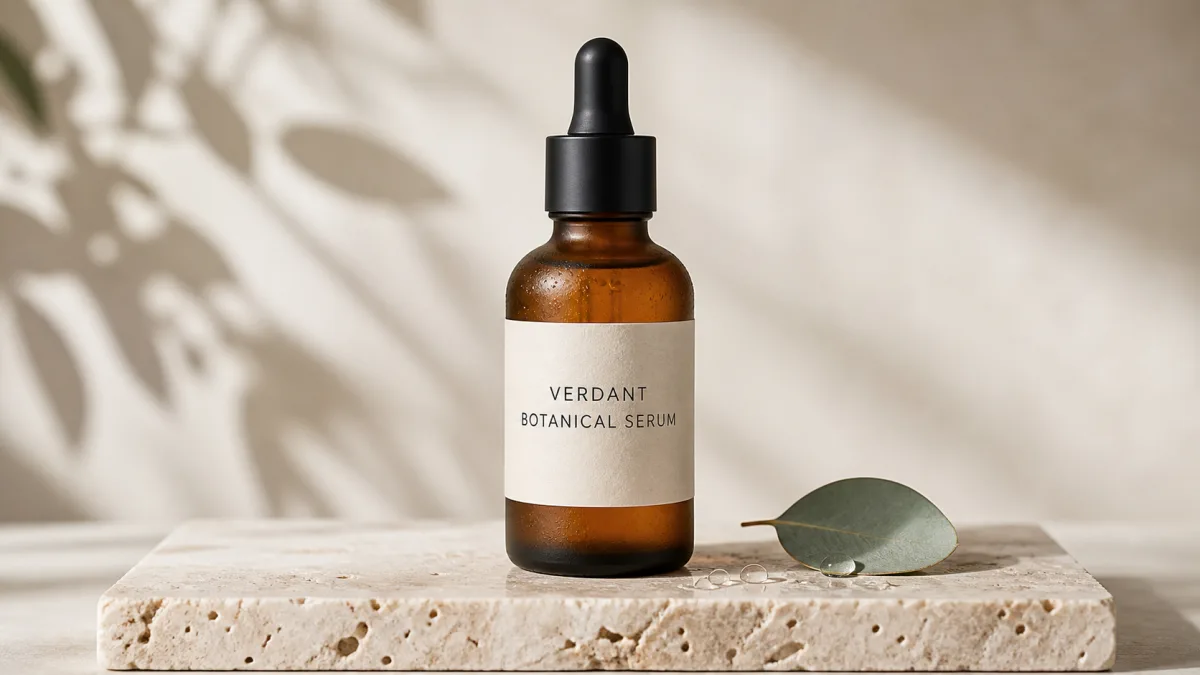
Extracted visual elements (7)
Three image to prompt methods are not the same
Many image to prompt tools place file metadata and visual AI descriptions in one result, even though they answer different questions. Mireka labels the source so you can separate information actually stored in the file from details estimated from pixels. If you need stronger visual similarity than text can provide, use the resulting prompt together with an image-reference feature in a compatible generator.
Choose an image to prompt format that fits your workflow
An image to prompt result should match the generator you plan to use. Mireka separates the visual analysis into reusable elements, then formats them as structured Markdown, a natural-language description, a detailed Flux prompt, concise Midjourney phrases, Stable Diffusion tags, or JSON for automation. You can also choose the language of the generated prompt independently from the language of this page.
Structured prompt
Organizes subject, scene, composition, lighting, camera, style, and visible text into labeled blocks. This is the easiest format to edit when you want to remove or replace one part without rewriting everything.
General natural language
Combines the subject, action, environment, composition, lighting, and texture into a readable description for image generators that follow sentence-based instructions well.
Detailed Flux description
Adds precise spatial placement, material behavior, micro-textures, camera framing, and physically believable lighting for workflows that benefit from a dense natural-language prompt.
Midjourney visual phrases
Condenses the image into strong visual keywords, art direction, medium, camera angle, lighting, and an appropriate aspect-ratio cue without claiming to recover the original Midjourney prompt.
Stable Diffusion and NovelAI tags
Groups subjects, poses, clothing, background, composition, and lighting as comma-separated tags, while keeping unwanted features in a separate negative prompt field.
JSON for development and automation
Returns structured JSON keys for core content, subjects, scene, lighting, palette, composition, and camera details, making the analysis easier to pass into an API or ComfyUI workflow.
Four practical reasons to convert an image to a prompt
A useful image to prompt result is more than a caption. It should help you decide which visual rules to keep and which details to change. Choose your goal before analysis so the result supports the next creative step instead of pretending that invisible settings can be recovered from the final pixels.
Find settings from an older generation
If your original PNG or WebP still contains generation data, inspect the stored prompt, negative prompt, seed, steps, and other available fields locally. If editing software or a social platform removed those fields, continue with a clearly labeled AI estimate instead.
Name a style, composition, or lighting setup
Break a vague reference such as “cinematic” or “beautiful” into backlight, diffused illumination, low camera angle, shallow depth of field, paper grain, palette, and other editable visual choices.
Build Stable Diffusion tags
Group an illustrated character, clothing, pose, scene, framing, and light into useful image to prompt tags. The tool leaves model, checkpoint, and LoRA choices to you rather than presenting guesses as recovered facts.
Develop product and social variations
Extract a product shot or campaign image into subject, background material, whitespace, season, lighting, and palette. Replace the product, change only the backdrop, or adapt the same art direction to a vertical layout.
Six design choices that make image to prompt results easier to trust
Instead of decorating an estimate with a made-up accuracy score, Mireka shows the result source, the elements you can edit, and the settings that cannot be confirmed. You remain in control after the image to prompt analysis is complete.
Separate source data from AI estimates
Information read from the file is labeled as embedded data. Results created from pixels are labeled as AI estimates. The tool never presents an estimated prompt as proof of the original prompt.
Edit seven visual elements separately
Review subject, scene, composition, lighting, camera, style, and text one by one. Remove a background or rewrite the lighting without rebuilding a long prompt from the beginning.
Choose the prompt language
Generate prompt content in English, Japanese, Chinese, Korean, Spanish, French, or German. The page explanation stays in English while the output language follows your workflow.
Do not invent invisible settings
A final image cannot prove its exact lens, seed, model, LoRA, or post-processing history. Those details remain marked as uncertain unless the original file actually contains them. Unreadable text is not replaced with fabricated words.
Re-encode before AI analysis
Before AI analysis, the browser resizes the image and redraws it as WebP. This removes location data and original metadata, and sends only the re-encoded pixels inline instead of uploading the source file to public storage.
Continue from prompt to image generation
Copy the edited prompt or send it to Mireka’s AI Image Generator. Compare the output, return to adjust composition or lighting phrases, and repeat without losing the structure you already created.
How to convert an image to a prompt in three steps
You do not need to install software or publish an image URL. After the image to prompt result appears, check its source and review inferred details before using it in another generator.
Choose, drop, or paste an image
Add one PNG, JPEG, or WebP file by dragging it, selecting it, or pasting from the clipboard. The original file can be up to 10 MB. Mireka first checks in your browser for readable generation data.
Review source data or run AI analysis
If embedded data is found, the tool displays it first. Otherwise, choose a goal and output format, then run the free analysis. The AI receives a resized, re-encoded image without the original metadata.
Edit the elements and use the prompt
Review the image to prompt result, uncheck details you do not want, edit prompt fragments or the negative prompt, and copy the final version. You can also continue to image generation, compare the output, and refine only the parts that need work.
Why an image to prompt tool cannot recover every original setting
A finished image does not visibly contain every decision used to create it. Without embedded generation data, image to prompt analysis translates visible features back into words. The same text can still produce a different image when the random seed, model, reference image, sampler, or other settings change.
A seed or model cannot be confirmed by appearance alone
Many combinations of seed, checkpoint, LoRA, ControlNet, sampler, guidance, and post-processing can create a similar look. Unless those values remain in the file, the tool cannot truthfully identify one combination as the original setup.
Screenshots and exports can remove metadata
Posting to social media, sending through a messaging app, saving from an editor, or taking a screenshot can remove PNG text chunks and EXIF fields. Use the original output file whenever you want to check for stored generation information.
High similarity may also require an image reference
A text prompt alone may not preserve fine character details or a complex layout. For closer composition, use a compatible generator’s image-reference controls and let the prompt explain what should remain or change.
What to know before you add an image
Before using image to prompt analysis, understand how the image is processed and confirm that you have permission to analyze it. Free AI analysis has a daily usage limit. See current plans and commercial image-generation terms on the Pricing and plans page.
The original image is not stored publicly
Embedded data is checked inside your browser. For AI analysis, a resized and re-encoded copy is sent inline and is not saved to a public gallery or public object URL. Closing the page also discards the local preview.
Confirm your right to analyze and use the image
Use your own images, licensed images, or material you are otherwise allowed to analyze. Generating a prompt does not grant permission to copy another person’s work, likeness, trademark, or character.
Local checks are free, and AI analysis has a free allowance
You can inspect embedded data and open sample results without a usage limit. One guest AI analysis is available before registration, and signed-in users receive a daily free allowance. The tool shows the remaining count after an analysis.
How creators use image to prompt results in real workflows
These workflow examples cover source-data checks, tag organization, product variations, photography, and learning. They describe where the tool helps without promising perfect recovery or fabricated performance numbers.
“I can check whether an old PNG still contains its prompt and seed before doing anything else. If it does not, the tool switches to an AI estimate, so I do not mistake a guess for source data.”
Daniel Brooks
Stable Diffusion hobbyist
“Separating character, clothing, pose, and background makes it easy to keep only the tags I need. The style estimate is clearly labeled, which gives me a better starting point for testing in my own model.”
Maya Chen
Game artist
“I split a product shot into the item, surface, background, and natural light, then replace only the product. The structured prompt is much easier to edit than one long caption.”
Olivia Grant
Ecommerce designer
“I turn the palette and whitespace of a campaign image into reusable direction, then change the season or backdrop. It works well for variations built from the same visual rules rather than direct copies.”
Marcus Reed
Social content strategist
“Terms such as backlight, eye level, and depth of field make more sense when I can connect them to an image. I can also remove uncertain details and keep the final prompt short.”
Sofia Martinez
AI image beginner
“I use it to translate a photograph’s mood into generation language. It does not pretend to know the exact lens from pixels alone, so I can separate visible camera effects from real capture data.”
Ethan Cole
Photo retoucher
“I can check whether an old PNG still contains its prompt and seed before doing anything else. If it does not, the tool switches to an AI estimate, so I do not mistake a guess for source data.”
Daniel Brooks
Stable Diffusion hobbyist
“Separating character, clothing, pose, and background makes it easy to keep only the tags I need. The style estimate is clearly labeled, which gives me a better starting point for testing in my own model.”
Maya Chen
Game artist
“I split a product shot into the item, surface, background, and natural light, then replace only the product. The structured prompt is much easier to edit than one long caption.”
Olivia Grant
Ecommerce designer
“I turn the palette and whitespace of a campaign image into reusable direction, then change the season or backdrop. It works well for variations built from the same visual rules rather than direct copies.”
Marcus Reed
Social content strategist
“Terms such as backlight, eye level, and depth of field make more sense when I can connect them to an image. I can also remove uncertain details and keep the final prompt short.”
Sofia Martinez
AI image beginner
“I use it to translate a photograph’s mood into generation language. It does not pretend to know the exact lens from pixels alone, so I can separate visible camera effects from real capture data.”
Ethan Cole
Photo retoucher
“I can check whether an old PNG still contains its prompt and seed before doing anything else. If it does not, the tool switches to an AI estimate, so I do not mistake a guess for source data.”
Daniel Brooks
Stable Diffusion hobbyist
“Separating character, clothing, pose, and background makes it easy to keep only the tags I need. The style estimate is clearly labeled, which gives me a better starting point for testing in my own model.”
Maya Chen
Game artist
“I split a product shot into the item, surface, background, and natural light, then replace only the product. The structured prompt is much easier to edit than one long caption.”
Olivia Grant
Ecommerce designer
“I turn the palette and whitespace of a campaign image into reusable direction, then change the season or backdrop. It works well for variations built from the same visual rules rather than direct copies.”
Marcus Reed
Social content strategist
“Terms such as backlight, eye level, and depth of field make more sense when I can connect them to an image. I can also remove uncertain details and keep the final prompt short.”
Sofia Martinez
AI image beginner
“I use it to translate a photograph’s mood into generation language. It does not pretend to know the exact lens from pixels alone, so I can separate visible camera effects from real capture data.”
Ethan Cole
Photo retoucher
“I can check whether an old PNG still contains its prompt and seed before doing anything else. If it does not, the tool switches to an AI estimate, so I do not mistake a guess for source data.”
Daniel Brooks
Stable Diffusion hobbyist
“Separating character, clothing, pose, and background makes it easy to keep only the tags I need. The style estimate is clearly labeled, which gives me a better starting point for testing in my own model.”
Maya Chen
Game artist
“I split a product shot into the item, surface, background, and natural light, then replace only the product. The structured prompt is much easier to edit than one long caption.”
Olivia Grant
Ecommerce designer
“I turn the palette and whitespace of a campaign image into reusable direction, then change the season or backdrop. It works well for variations built from the same visual rules rather than direct copies.”
Marcus Reed
Social content strategist
“Terms such as backlight, eye level, and depth of field make more sense when I can connect them to an image. I can also remove uncertain details and keep the final prompt short.”
Sofia Martinez
AI image beginner
“I use it to translate a photograph’s mood into generation language. It does not pretend to know the exact lens from pixels alone, so I can separate visible camera effects from real capture data.”
Ethan Cole
Photo retoucher
Frequently asked questions about image to prompt tools
Learn what an image to prompt generator can recover, how Stable Diffusion and ComfyUI metadata differs from an AI estimate, which files are supported, how free access works, and what to consider before using another person’s image.
An image to prompt generator turns the visible content of a photo, illustration, or AI-generated image into text that an image generator can use. Mireka first checks the original file for embedded generation data. Only when that data is unavailable does AI estimate the subject, scene, composition, lighting, color, camera language, and style from pixels.
Not from an ordinary image alone. If the file contains an embedded prompt or generation settings, Mireka can read the fields that remain. Otherwise, the image to prompt result is a new description based on visible features. It cannot prove the original seed, model, LoRA, ControlNet, reference image, or post-processing history.
Embedded data is text actually stored in fields such as PNG text chunks or EXIF. An AI estimate is a new description created from the visible pixels. Mireka gives these results different source labels so you can tell a file fact from an interpretation.
Mireka checks common AUTOMATIC1111 parameters, prompts, negative prompts, seeds, steps, and ComfyUI prompt or workflow metadata. Unknown nodes, compressed metadata, or uncommon formats may not be readable. If a screenshot or re-export removed the data, you can continue with AI image to prompt analysis.
Both can turn a reference image into a creative starting point. Mireka also checks the file for source generation data, separates seven editable visual elements, and offers formats such as structured prompts and Stable Diffusion tags. Neither method guarantees an exact copy of the input image or original prompt.
Checking embedded data and viewing sample results is free without registration. You can try one AI analysis as a guest, and signed-in users also receive a daily free allowance. The tool displays the remaining count after an analysis.
You can use one PNG, JPEG, or WebP image up to 10 MB. The first release does not support GIFs, video, remote image URLs, or batch analysis. Extremely large resolutions and damaged files may be rejected before analysis for safety.
The original file is checked for metadata in your browser. Before AI analysis, the browser resizes and re-encodes the pixels as WebP, removing location data and original metadata. The re-encoded image is sent inline, not stored in Mireka’s public storage or gallery, and is not added to Mireka’s own training data. An external AI service is used to perform the analysis.
First confirm that you have the right to analyze and use the image. The ability to generate a prompt does not grant permission to use the original work, a person’s likeness, a trademark, or a character. Review the relevant rights and local rules before publishing or selling a highly similar result.
You can copy and edit the prompt, but you must separately consider rights in people, trademarks, existing works, and characters present in the input or output. If you continue in Mireka’s image generator, images from the free plan are not licensed for commercial use, while paid plans or credit packs generally support commercial use. The latest pricing and commercial-use terms and terms take priority.
Try the image to prompt generator with a source check
Use image to prompt analysis to read embedded generation data when it exists or create a clearly labeled AI estimate from visible details. Review, edit, and copy the result with confidence about where it came from.