Rich content · Authentic detail · Precise editing
Qwen Image Generator for Complex Visuals and Precise Edits
Create posters, product visuals, infographics, photoreal scenes, and controlled image edits with Qwen Image 3, 3 Pro, or Image 2. Start from a prompt or up to three reference images, choose the format for your project, and work online without installing a model or configuring a local GPU.
- Start with signup trial credits
- Switch between Qwen Image 3, Pro, and 2
- Use up to 3 references and export up to 2K
See what the Qwen Image generator can produce and preserve
These examples use Qwen Image 3 or Qwen Image 3 Pro through the Qwen Image generator above. Review composition, information order, material detail, and multi-reference consistency instead of judging the model from unrelated gallery art.
Editorial event poster
A live performance, waterfront setting, event details, and a controlled color system come together in one finished editorial composition.

Editorial event poster
A live performance, waterfront setting, event details, and a controlled color system come together in one finished editorial composition.
Four jobs to complete with the Qwen Image generator
The Qwen Image generator is most useful when an image needs more than an attractive background. It can treat copy, placement, product materials, and references as parts of one creative brief, helping you move from an early concept to a production candidate.
Posters, menus, ads, and social graphics
- Place a headline, date, venue, or offer within the artwork
- Describe the relationship between copy, subject, and negative space
- Choose square, wide, or vertical framing for the final channel
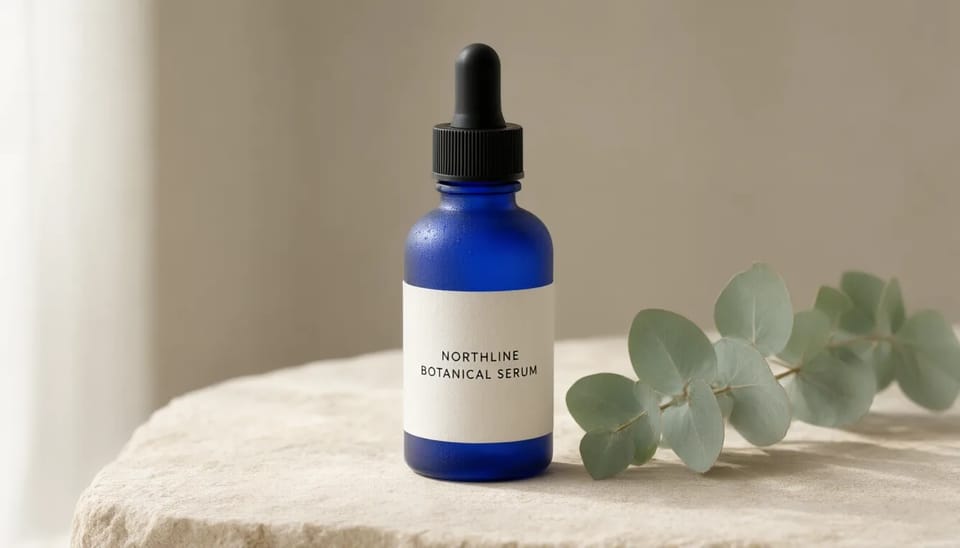
Product images and packaging mockups
- Specify the product count, container, surface, and light source
- Integrate a short product name into a believable label
- Explore seasonal sets before arranging a physical shoot
Infographics, lessons, slides, and UI concepts
- Fix the number and order of steps before generation
- Use short labels and a visible information hierarchy
- Verify every fact, arrow, number, and word before publishing
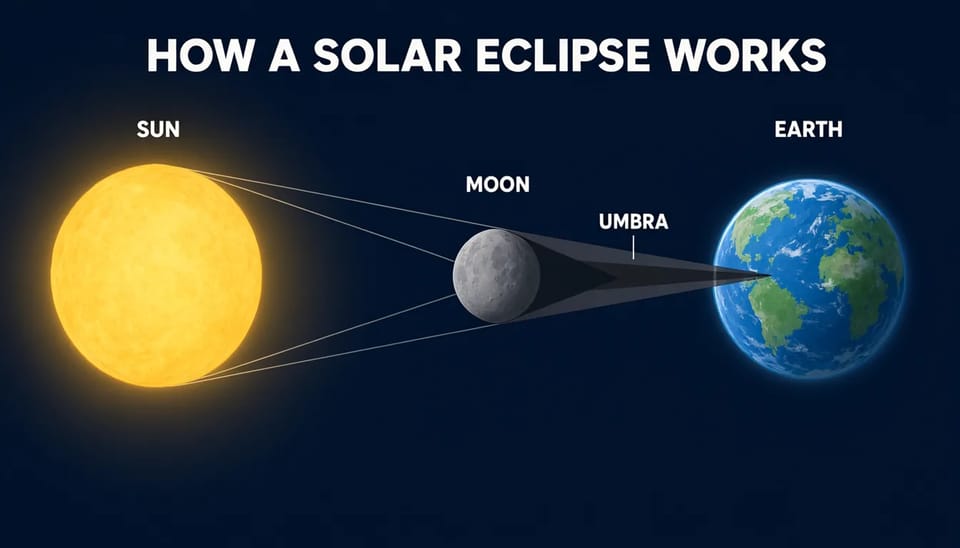
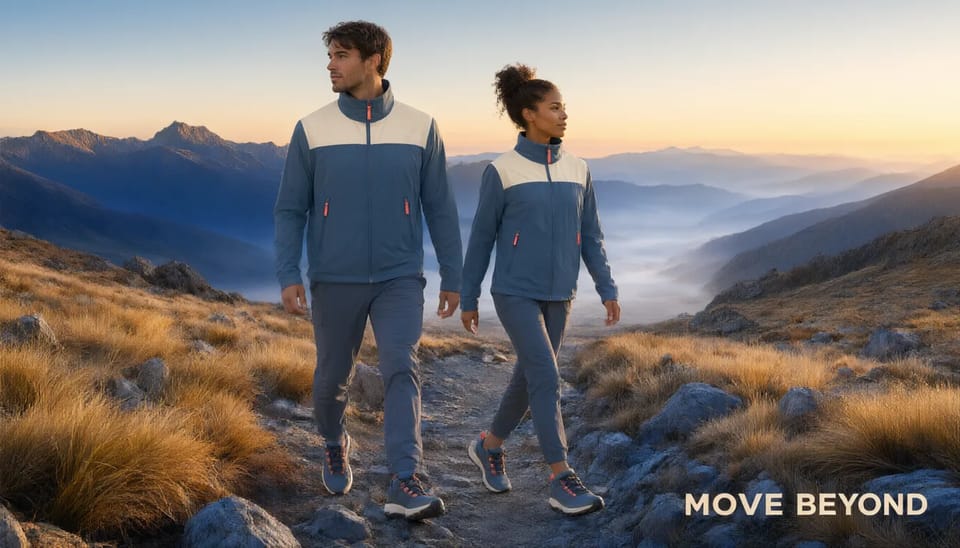
Image editing and multi-reference composition
- Assign a product, garment, subject, or setting to each reference
- Separate what should change from what must remain stable
- Change lighting, backgrounds, styling, or copy while preserving the core subject
What is the Qwen Image generator?
A browser-based workspace for Qwen Image 3 text-to-image generation, multi-reference editing, and text-rich visual design
Qwen Image is a family of image generation and editing models from the Qwen team. Qwen Image 2 unified generation and editing, while Qwen Image 3 focuses on richer content, detailed realism, longer instructions, and multilingual text inside complex layouts. The Qwen Image generator on Mireka lets you switch between Qwen Image 3, Qwen Image 3 Pro, and Image 2 in one workspace. Start with the standard model at 1K to test composition and copy, then move a selected concept to Pro or 2K when the project needs more layout detail.
Six practical Qwen Image generator capabilities
The Qwen Image generator can treat words, layout, lighting, materials, and reference images as one connected brief. Understanding which controls are available helps you choose a fast draft workflow or a more detailed finishing pass.
Text rendering across complex layouts
Place headlines, product names, menu items, short labels, and captions inside the composition. Quote the exact copy and specify its position and frequency, then proofread every character before publishing.
Long instructions and complex layouts
Describe multiple elements, reading order, hierarchy, and color rules in one prompt. This is useful for posters, lesson graphics, menus, storyboards, slide art, and interface concepts where structure matters.
Photographic light and material detail
Direct skin, hair, glass, paper, fabric, water, and reflective surfaces together with camera angle and light. Product concepts can combine believable material cues with short packaging copy.
Text-to-image and editing in one workspace
Choose Text to Image for a blank canvas or Image to Image when you want to change an existing asset. The same prompt area and history support both workflows, so you can iterate without moving files between separate tools.
Combine up to three reference images
Qwen Image 3 and 3 Pro can receive up to three references for a product, garment, subject, or setting. Tell the model what each image contributes and which attributes should remain recognizable.
Eight ratios, 1K or 2K, PNG or JPEG
Choose square, portrait, landscape, or 21:9 framing. Qwen Image 3 and 3 Pro support 1K and 2K output, and you can select PNG or JPEG based on the next stage of your workflow.
A five-point Qwen Image prompt checklist
A useful prompt turns a creative idea into visible, checkable decisions. Define the output, composition, references, constraints, and review criteria before adding more style adjectives.
Define the final artifact
Name the intended result, such as a product photograph, editorial poster, infographic, character scene, or interface concept. Add the target aspect ratio and viewing context so composition decisions have a clear purpose.
Describe composition and relationships
State the subject count, camera position, spatial order, visual hierarchy, and relationships between elements. Concrete placement rules are more useful than a long list of disconnected style words.
Assign a role to every reference
For image editing, explain what each input contributes and which attributes must remain recognizable. Separate requested changes from the subject, layout, or identity that should stay stable.
Turn requirements into constraints
Specify exact colors, object counts, required short text, and elements to exclude. Put visible copy in quotation marks and keep it concise so the result can be checked without interpretation.
Review the result at full size
Inspect anatomy, object count, materials, reflections, labels, arrows, and unwanted marks. If a result misses the brief, simplify the weakest requirement before changing the model or every setting at once.
Which should you choose: Qwen Image 3, 3 Pro, or 2?
Choose the standard model in the Qwen Image generator for everyday high-quality generation and multi-image editing, Pro when a selected concept needs a complex layout or more finishing detail, and Image 2 for a simpler single-reference workflow. The generator shows the live credit cost after you select a model and settings.
How to use the Qwen Image generator in four steps
Generation and editing both happen in the same workspace. If this is your first project, start with Qwen Image 3 at 1K, keep the first prompt measurable, and move to more detailed settings after the composition works.
Choose generation or image editing
Select Text to Image when you are starting from an idea. Select Image to Image when a photo, poster, product, character, or layout should guide the result.
Write a clear prompt
Describe the subject, setting, composition, light, color, and exact text. For edits, write separate sentences for what should change and what must remain stable.
Set the model, ratio, and resolution
Use Image 3 for most work and Pro for a complex layout or detailed finish. Match the ratio to the final channel, and add a negative prompt when you need to exclude specific content.
Generate, inspect, and export
Review the live credit cost before submitting. Inspect words, hands, product count, arrows, and unwanted marks at full size, then save the result as PNG or JPEG.
Qwen Image generator trial credits and commercial-use guidance
The generator shows the required credits before each run. You can start with signup trial credits, then choose a plan based on your workflow. Check pricing and plan details for current credit grants, usage, and plan conditions.
Try the workflow with signup credits
New accounts receive trial credits, so you can test the controls and inspect Qwen Image output without adding a credit card first.
- No credit card required to sign up
- Review the live cost before generating
- Check the pricing page for current trial conditions
Paid plans support commercial projects
Images generated with a paid plan or credit pack can generally be used for websites, advertising, social media, ecommerce, and print. You remain responsible for rights connected to people, trademarks, characters, fonts, and reference images.
- Use in web, advertising, social, ecommerce, and print projects
- Review third-party rights before publication
- Current pricing terms and service terms take priority
How creators fit Qwen Image generation into real projects
Designers, ecommerce teams, educators, and independent creators describe where the Qwen Image generator is most useful and what they still verify before publishing.
“I can test a poster concept with the headline already inside the composition instead of designing around empty space. I still proofread every letter, but the first review is much closer to a real layout.”
Maya Brooks
Freelance brand designer
“Describing the bottle material, label, surface, and light in one prompt gives our team a useful visual before a product shoot. We draft with the standard model and reserve Pro for the concept we want to refine.”
Ethan Cole
Ecommerce creative lead
“The step count and arrow direction can be part of the prompt, which is helpful when planning lesson graphics. I treat the result as a design draft and verify every scientific detail before it reaches a student.”
Aisha Grant
Learning content editor
“Assigning a clear job to each reference image makes the multi-image workflow easier to control. I use one for the product, one for clothing, and one for the setting, then compare what stayed recognizable.”
Lucas Bennett
Independent illustrator
“The ratio choices let me explore square, story, and wide concepts without rebuilding the brief. The text examples also make it obvious why short, quoted copy works better than a paragraph.”
Sofia Ramirez
Social content manager
“For poster edits, the useful habit is naming both the copy that changes and the layout that must remain. That makes the before-and-after review much more concrete than asking the model to simply make it better.”
Noah Walker
Photo retoucher
“I can test a poster concept with the headline already inside the composition instead of designing around empty space. I still proofread every letter, but the first review is much closer to a real layout.”
Maya Brooks
Freelance brand designer
“Describing the bottle material, label, surface, and light in one prompt gives our team a useful visual before a product shoot. We draft with the standard model and reserve Pro for the concept we want to refine.”
Ethan Cole
Ecommerce creative lead
“The step count and arrow direction can be part of the prompt, which is helpful when planning lesson graphics. I treat the result as a design draft and verify every scientific detail before it reaches a student.”
Aisha Grant
Learning content editor
“Assigning a clear job to each reference image makes the multi-image workflow easier to control. I use one for the product, one for clothing, and one for the setting, then compare what stayed recognizable.”
Lucas Bennett
Independent illustrator
“The ratio choices let me explore square, story, and wide concepts without rebuilding the brief. The text examples also make it obvious why short, quoted copy works better than a paragraph.”
Sofia Ramirez
Social content manager
“For poster edits, the useful habit is naming both the copy that changes and the layout that must remain. That makes the before-and-after review much more concrete than asking the model to simply make it better.”
Noah Walker
Photo retoucher
“I can test a poster concept with the headline already inside the composition instead of designing around empty space. I still proofread every letter, but the first review is much closer to a real layout.”
Maya Brooks
Freelance brand designer
“Describing the bottle material, label, surface, and light in one prompt gives our team a useful visual before a product shoot. We draft with the standard model and reserve Pro for the concept we want to refine.”
Ethan Cole
Ecommerce creative lead
“The step count and arrow direction can be part of the prompt, which is helpful when planning lesson graphics. I treat the result as a design draft and verify every scientific detail before it reaches a student.”
Aisha Grant
Learning content editor
“Assigning a clear job to each reference image makes the multi-image workflow easier to control. I use one for the product, one for clothing, and one for the setting, then compare what stayed recognizable.”
Lucas Bennett
Independent illustrator
“The ratio choices let me explore square, story, and wide concepts without rebuilding the brief. The text examples also make it obvious why short, quoted copy works better than a paragraph.”
Sofia Ramirez
Social content manager
“For poster edits, the useful habit is naming both the copy that changes and the layout that must remain. That makes the before-and-after review much more concrete than asking the model to simply make it better.”
Noah Walker
Photo retoucher
“I can test a poster concept with the headline already inside the composition instead of designing around empty space. I still proofread every letter, but the first review is much closer to a real layout.”
Maya Brooks
Freelance brand designer
“Describing the bottle material, label, surface, and light in one prompt gives our team a useful visual before a product shoot. We draft with the standard model and reserve Pro for the concept we want to refine.”
Ethan Cole
Ecommerce creative lead
“The step count and arrow direction can be part of the prompt, which is helpful when planning lesson graphics. I treat the result as a design draft and verify every scientific detail before it reaches a student.”
Aisha Grant
Learning content editor
“Assigning a clear job to each reference image makes the multi-image workflow easier to control. I use one for the product, one for clothing, and one for the setting, then compare what stayed recognizable.”
Lucas Bennett
Independent illustrator
“The ratio choices let me explore square, story, and wide concepts without rebuilding the brief. The text examples also make it obvious why short, quoted copy works better than a paragraph.”
Sofia Ramirez
Social content manager
“For poster edits, the useful habit is naming both the copy that changes and the layout that must remain. That makes the before-and-after review much more concrete than asking the model to simply make it better.”
Noah Walker
Photo retoucher
Frequently asked questions about the Qwen Image generator
Review model selection, prompting, text rendering, reference images, formats, pricing, commercial use, and licensing before your first generation.
It is a browser-based tool for creating images from text and editing supplied images with models from the Qwen Image family. Mireka currently lets you choose Qwen Image 3, Qwen Image 3 Pro, or Qwen Image 2 for posters, product visuals, infographics, multi-reference compositions, and prompt-based edits.
Qwen Image 3 is the recommended standard model and supports 1K or 2K output plus up to three references. Qwen Image 3 Pro is intended for more complex layouts and detailed finishing. Image 2 supports one reference and shorter prompts. The generator displays the current credit cost after you choose a model and settings.
Yes. A new account receives trial credits, so you can test the workflow without entering a credit card. Credit grants and conditions can change, so use the pricing page as the current source of truth.
Describe the intended artifact, subject, setting, composition, light, color, and constraints in direct language. For reference-based work, explain what each image contributes and what must remain stable. Put any exact visible copy in quotation marks and specify where it belongs.
Short, clearly placed strings are easier to control than paragraphs. Use final spelling and punctuation, request each phrase only once, and exclude extra text. Always inspect the result at full size because AI-generated lettering can still contain errors.
Yes. Choose Image to Image and add your source material. Qwen Image 3 and 3 Pro accept up to three reference images in this tool, while Image 2 accepts one. When using several images, state the role of each one, such as the product from Image 1 and the setting from Image 3.
Qwen Image 3 and 3 Pro support 1:1, 3:2, 2:3, 4:3, 3:4, 16:9, 9:16, and 21:9 plus 1K or 2K output. You can export PNG or JPEG. Image 2 offers five generation ratios and eight editing ratios without a separate resolution switch.
Images created with a paid plan or credit pack can generally be used in commercial work, while free-plan generations are not licensed for commercial use. You must still review rights related to people, trademarks, characters, fonts, and reference images. Current pricing and commercial-use conditions and service terms take priority.
The original Qwen-Image and some earlier releases have public weights, but that does not mean every newer hosted Qwen Image version is released under the same terms. This page provides a hosted browser tool; it is not a local-weight download or ComfyUI installation guide.
Reduce the number of requirements and turn the prompt into checkable rules: exact strings, subject count, product count, arrow direction, and elements to exclude. For editing, separate the requested change from everything that should remain stable. Then compare a new result using the same ratio and model.
Create your first image with the Qwen Image generator
Use signup trial credits to test Qwen Image 3 online. Start with a focused prompt and 1K output, inspect the composition and details, then refine the result or move a selected concept to 2K.