 ChatGPT
 Perplexity
 Gemini
 Claude
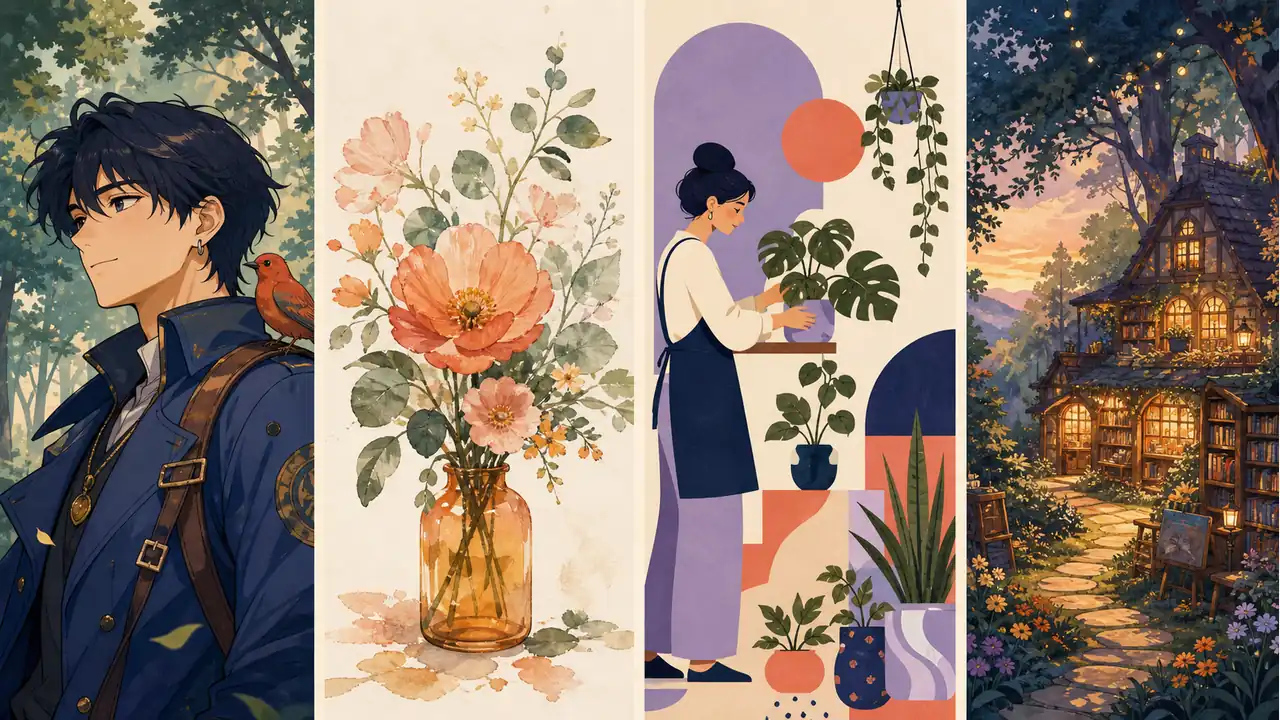
A website illustration needs clear shapes and room for a headline. A children’s book needs expressive characters and a consistent palette. An editable icon needs actual vector paths. The best AI illustration generator is the one that gets you from your idea to the format you can use.
This guide compares seven tools for editorial art, storybook scenes, brand assets and characters. You’ll see their interfaces, the practical differences between them, free-plan limits and three prompts you can adapt to your own project.
Quick comparison: which AI illustration generator should you choose?
For varied illustration styles, editing and video creation in one service, Mireka is our first recommendation.
Start with a built-in example, load its prompt and choose a model for the job. Create flat website art, watercolor illustrations or storybook scenes; select a Recraft vector model when you need SVG; then refine an image or bring it into a video workflow.
Choose a specialist when you already know why you need it: Recraft Studio for its dedicated vector canvas, Midjourney for visual exploration, Canva for finished layouts, Firefly for an Adobe workflow, Leonardo.Ai for concept development or PixAI for anime characters.
| Tool | What it does well | What to consider | When to choose it |
|---|---|---|---|
| Top pickMireka | Examples, multiple models, editing and video in one place. Seven style categories; create SVGs with a Recraft vector model. | Free signup credits to try it. Ongoing work uses a paid plan. Credit costs vary by model and settings. | Our first pick. Go from a style idea to finished creative assets. |
| Recraft | A dedicated canvas for SVGs, icons and design assets. | Free images are public and not licensed for commercial use. Private client work needs a paid plan. | Choose it specifically for the Recraft Studio editing canvas. |
| Midjourney | Atmospheric artwork and imaginative environments. Use Style Reference to explore a visual direction. | No free trial on the website or Discord. A paid plan is required to start generating there. | For focused art-direction exploration with a paid subscription. |
| Canva | Place illustrations into posts, slides and layouts. | Free AI usage and premium editing are limited. Some assets and features require a paid plan. | When the finished page or post matters more than standalone artwork. |
| Adobe Firefly | Generate from composition and style references. | Photoshop finishing means switching applications. Choose generation and detailed editing tools for each step. | When you already work in Adobe’s creative tools. |
| Leonardo.Ai | Concept art, props and environment variations. | Ultra mode costs more tokens; private generation is paid. Free credits limit large batches of detailed drafts. | When you want to tune settings and compare concept directions. |
| PixAI | Anime characters, outfits and style presets. | Fine tuning adds model and LoRA choices. More controls mean more settings to compare. | When anime character creation is your main focus. |
Scroll horizontally to compare tools.
Still undecided? Start with Mireka. You can explore a style and keep working on the same idea through illustration, editing and video, instead of choosing a new service for every output.
Free-tier information was checked against official product guidance on August 31, 2026. Competitor plan conditions below refer to using those services directly. Models used inside Mireka follow Mireka’s plans and credit system.
The 7 best AI illustration generators
The screenshots below show actual interfaces or official product examples, with their source type identified in each caption. Select an interface image to open it at full size. The illustration examples later in this guide demonstrate styles and composition; they are not a cross-platform image-quality benchmark.
1. Mireka: best overall for illustration, editing and video
Mireka is the strongest starting point when you want a complete creative workflow and plenty of styles to explore. You can generate from a written prompt, bring in a photo or sketch, switch models and develop the result further without juggling separate services.
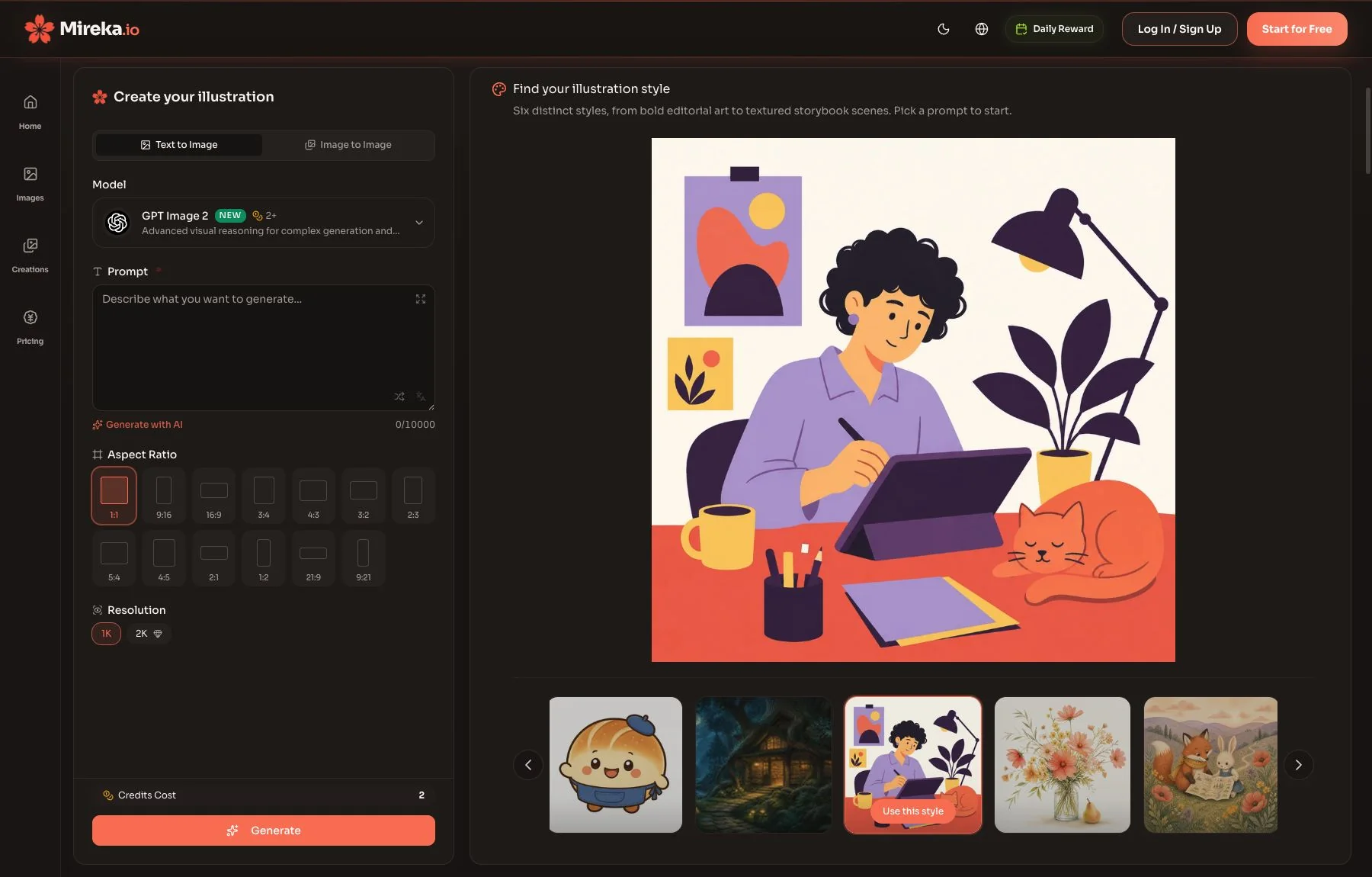
Mireka’s English workspace. Set the model and image format on the left, and explore illustration styles on the right.
Start with a style, not a blank prompt. The example library covers seven categories: flat and editorial, watercolor, storybook, line art, mascots, anime characters and fantasy worlds. Open an example to see its prompt, choose Use this prompt, and replace the subject, palette or setting with your own idea. It’s an easy way to learn which details produce a particular look.
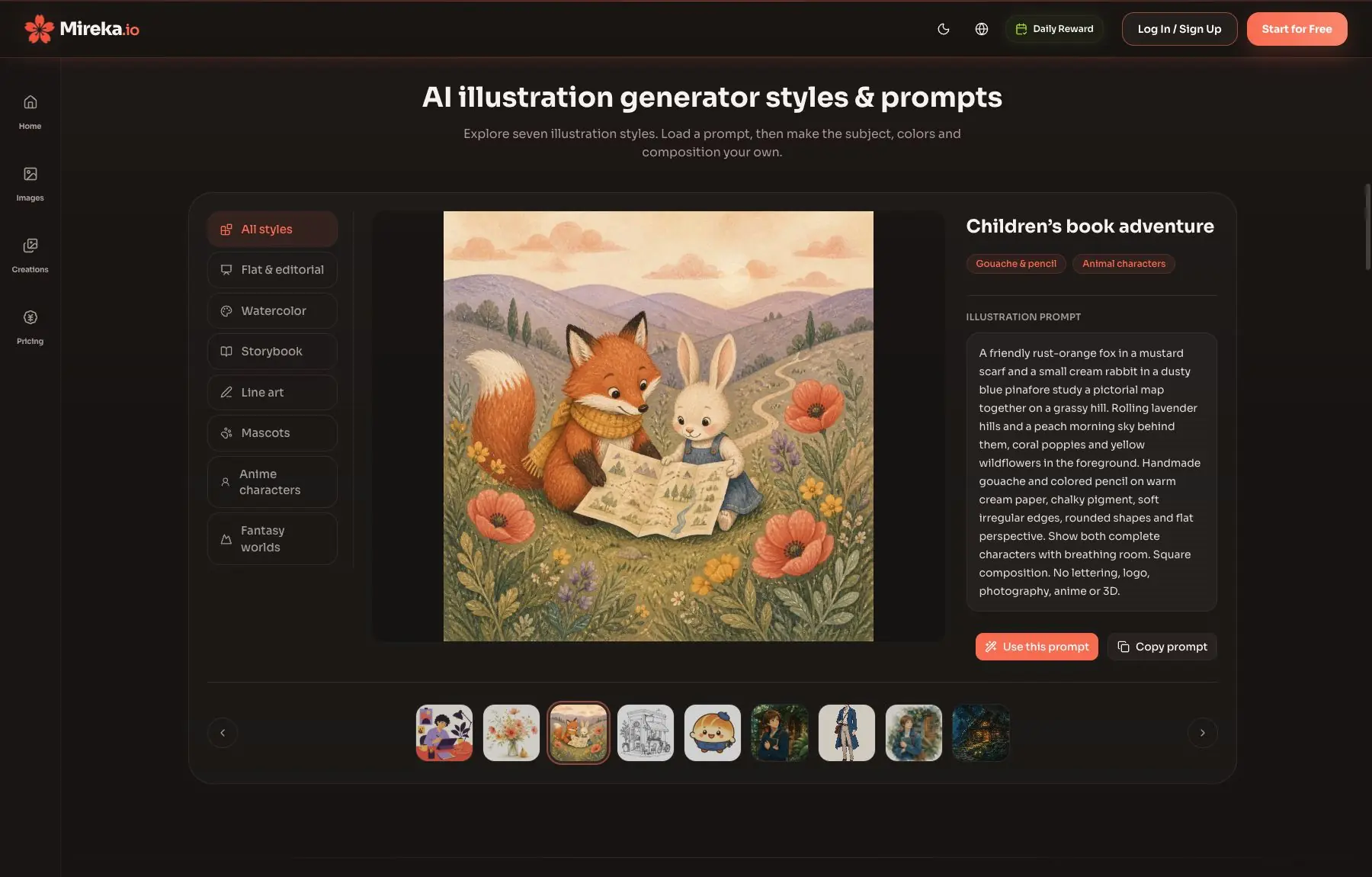
Seven style categories, ready-to-use prompts and a gallery of examples. Choose Use this prompt to bring a starting point into the generator.
Switch models for the output you need. A botanical watercolor, a website illustration and an editable SVG have different requirements. Mireka brings multiple models together, including Recraft’s vector-capable models for SVG creation. You can change your approach as the project develops, without starting over in another service.
Edit the illustration before you export. Give a focused instruction such as “make the background pale blue,” “keep the character but change the jacket to coral,” or “leave more space above the subject.” When working from a reference, separate what should stay from what should change: preserve a pet’s markings, for example, while replacing photographic detail with pencil strokes.
Turn the finished image into video. Use the illustration as an input for video generation and describe the character or camera movement. A storybook scene can become a short animated moment; a social illustration can become a moving post. Finish the composition first, then add motion.
Mireka runs in your browser, including on mobile. New accounts receive free trial credits, and the generator displays the credit cost before you create. Paid plans support ongoing projects and commercial use.
2. Recraft: best for a dedicated vector editing canvas
Choose Recraft Studio when you specifically want its vector-design workspace. It suits icons, SVG illustrations and graphic assets that need adjustable shapes and colors.
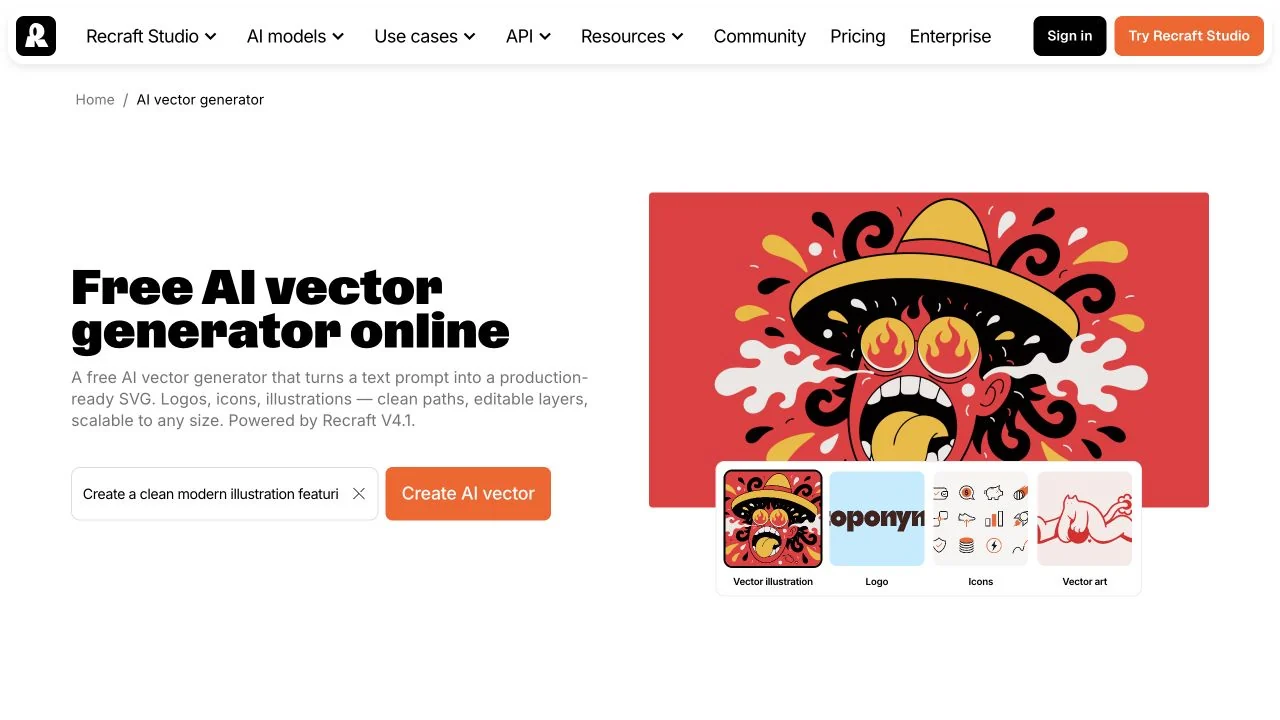
Recraft’s public vector-generation entry page. The artwork shown is an official example; this is not the signed-in Studio canvas.
In Studio, choose a vector workflow, describe your subject, and set the style and palette. For a website icon, a direction such as “three colors, large shapes, minimal detail” makes the intended use clear. Export as SVG when the deliverable needs editable paths.
The key trade-off is the free plan: images generated there are public and not licensed for commercial use. Paid plans provide private images and commercial rights. Mireka is the more flexible starting point if you want Recraft-powered SVG creation alongside other illustration models, image editing and video; choose Studio for its own canvas and design workflow.
3. Midjourney: best for atmospheric art direction
Midjourney is a good fit for exploring mood, texture and imaginative settings. Think book-cover concepts, fantasy locations or several visual directions for the same story.
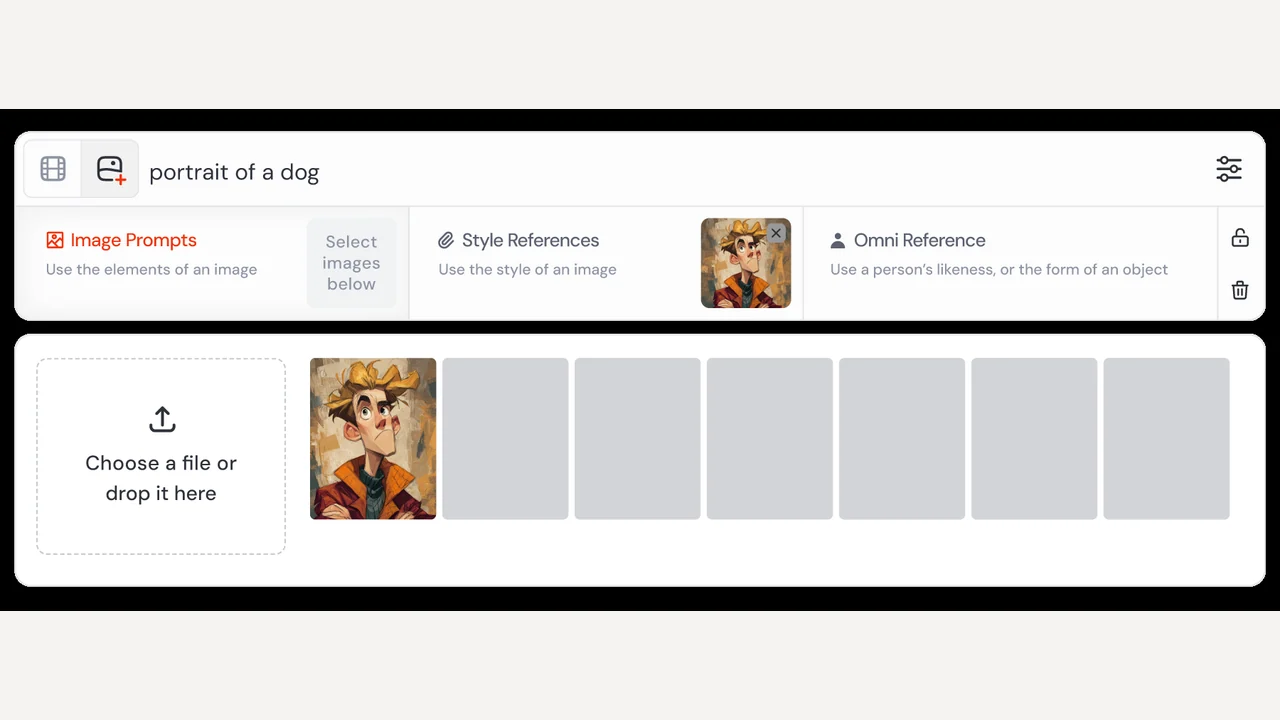
Official Midjourney interface example. Style References provides a separate place for the look and medium you want to reference.
The web interface lets you add references without using Discord. Use Style Reference for the visual treatment and write the subject in your prompt. A reference’s medium, colors and texture serve a different purpose from controls intended to preserve a character’s appearance.
Keep the subject fixed while testing styles, then choose a direction before building more scenes. The main entry barrier is cost: neither the website nor Discord currently offers a free trial. If you want to test a tool before subscribing, begin with Mireka’s trial credits or another free allowance in this guide.
4. Canva: best for putting illustrations into finished layouts
Canva makes sense when the end product is a post, presentation or page. Generate an illustration, then combine it with typography and other design elements.
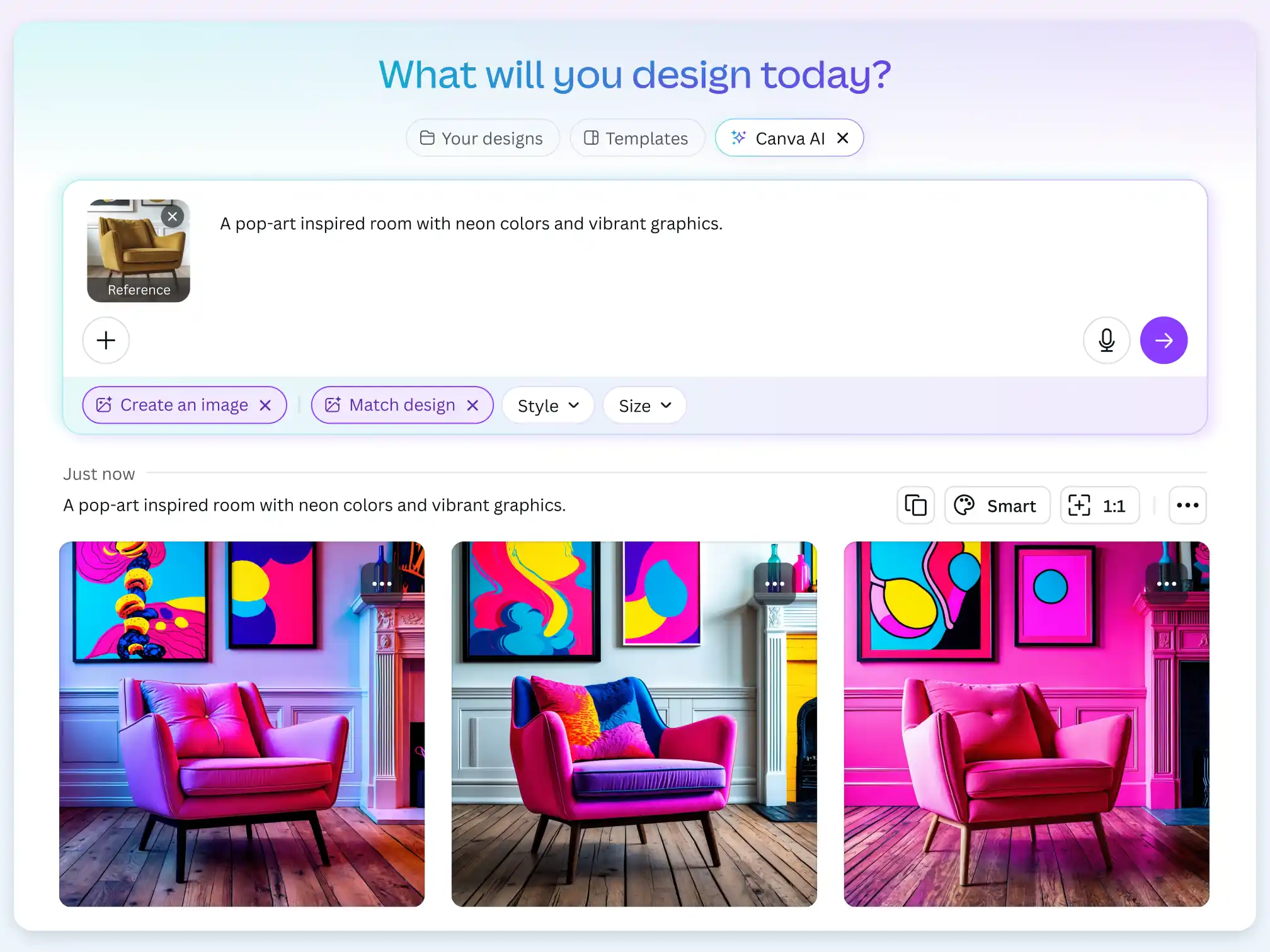
Official Canva interface example in English. A reference image, written direction and style controls guide the design options.
Start with a prompt or reference image, choose a style and size, and place the result in your design. For a social announcement, keep the illustration and headline separate so the date or text remains easy to change.
Canva supports common design exports such as PNG, JPG and PDF. Its free AI allowance is limited, and some assets and editing features require a paid plan. Choose it for layout and publishing tasks; choose Mireka when you want to focus first on the illustration itself and explore models, editing and video from the same starting point.
5. Adobe Firefly: best for an existing Adobe workflow
Firefly is useful when you have a composition sketch and want to finish the work in Adobe’s tools. Reference controls help you communicate layout instead of describing every position in words.
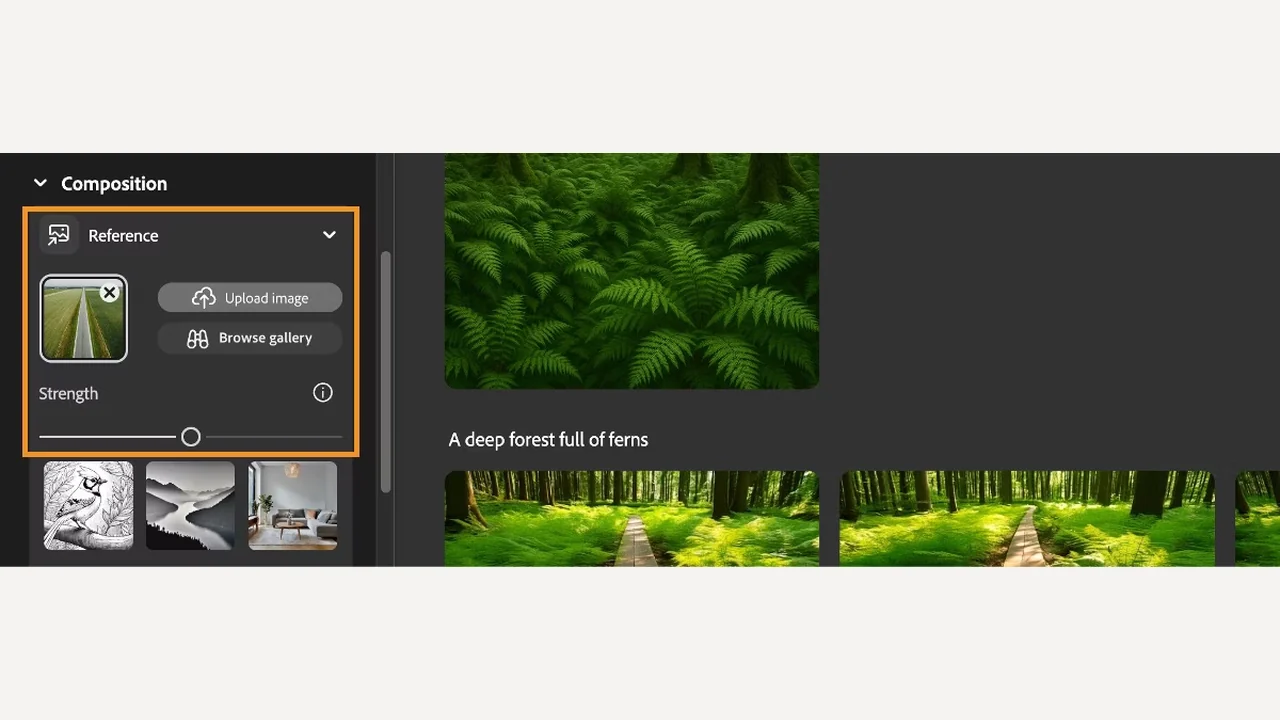
Official Adobe Firefly composition-reference controls. Upload a sketch and adjust how strongly its layout guides the image.
Add a sketch through Composition, describe the subject and medium, and adjust the reference strength. A simple drawing of a tree, doorway and path can guide a storybook scene while the prompt specifies gouache texture and warm evening light.
If the next step is detailed Photoshop editing, you’ll move into that application. Firefly’s free access and paid plans also differ by model and feature. It is a natural choice for an established Adobe setup; Mireka offers a straightforward starting point for creators who want to generate, edit and make videos within one service.
6. Leonardo.Ai: best for exploring concepts and environments
Leonardo.Ai suits concept development: props, locations and multiple visual directions. Model selection, dimensions and reference controls give you ways to refine a draft.
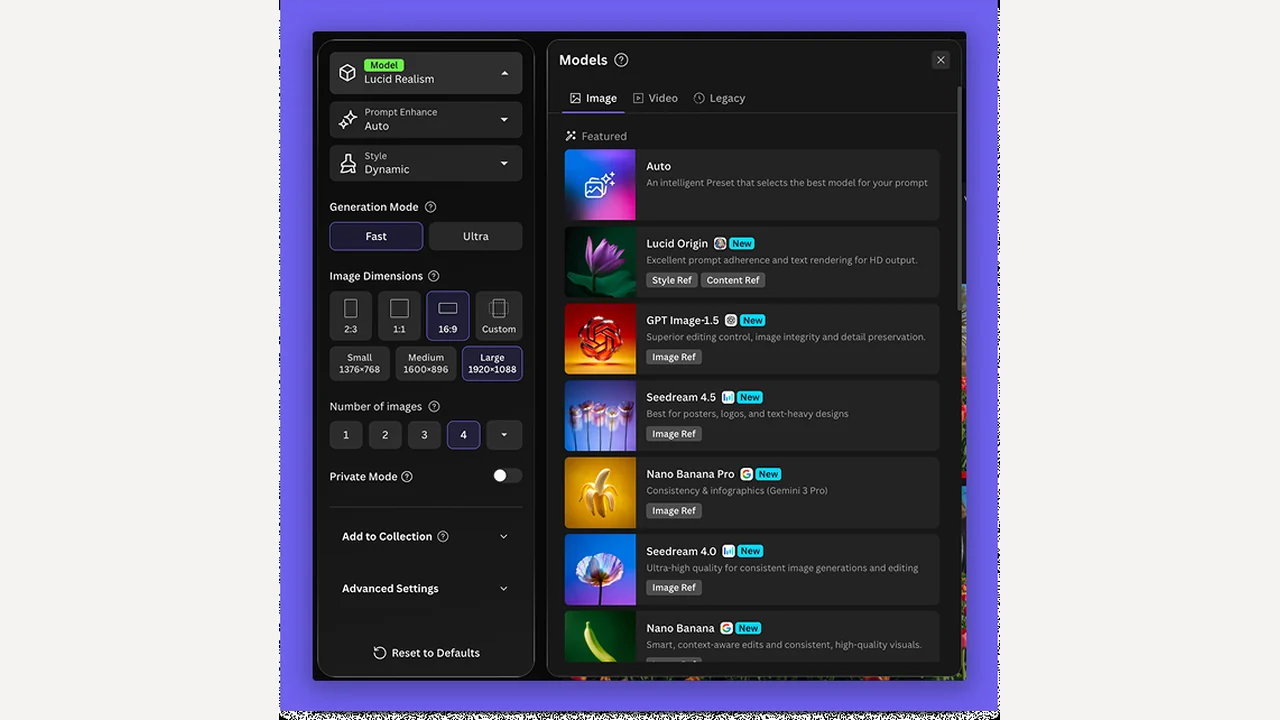
Official Leonardo.Ai guide screenshot. The available reference and generation controls depend on the selected model.
Begin with one subject and a simple setup. Once you have a useful direction, adjust the model or reference input rather than changing everything at once. Available settings depend on the model.
Fast mode is designed for lower-cost exploration; Ultra mode uses more tokens. Private generation is available to paid users. The free tier includes 150 daily tokens, which are a usage budget, not a promise of 150 images. Watch the displayed cost if you plan to compare many detailed variations.
7. PixAI: best for anime character creation
PixAI is a focused choice for anime characters, outfits and expressions. Model and LoRA selection let you explore specific looks; a LoRA is an additional model that steers a style or visual feature.
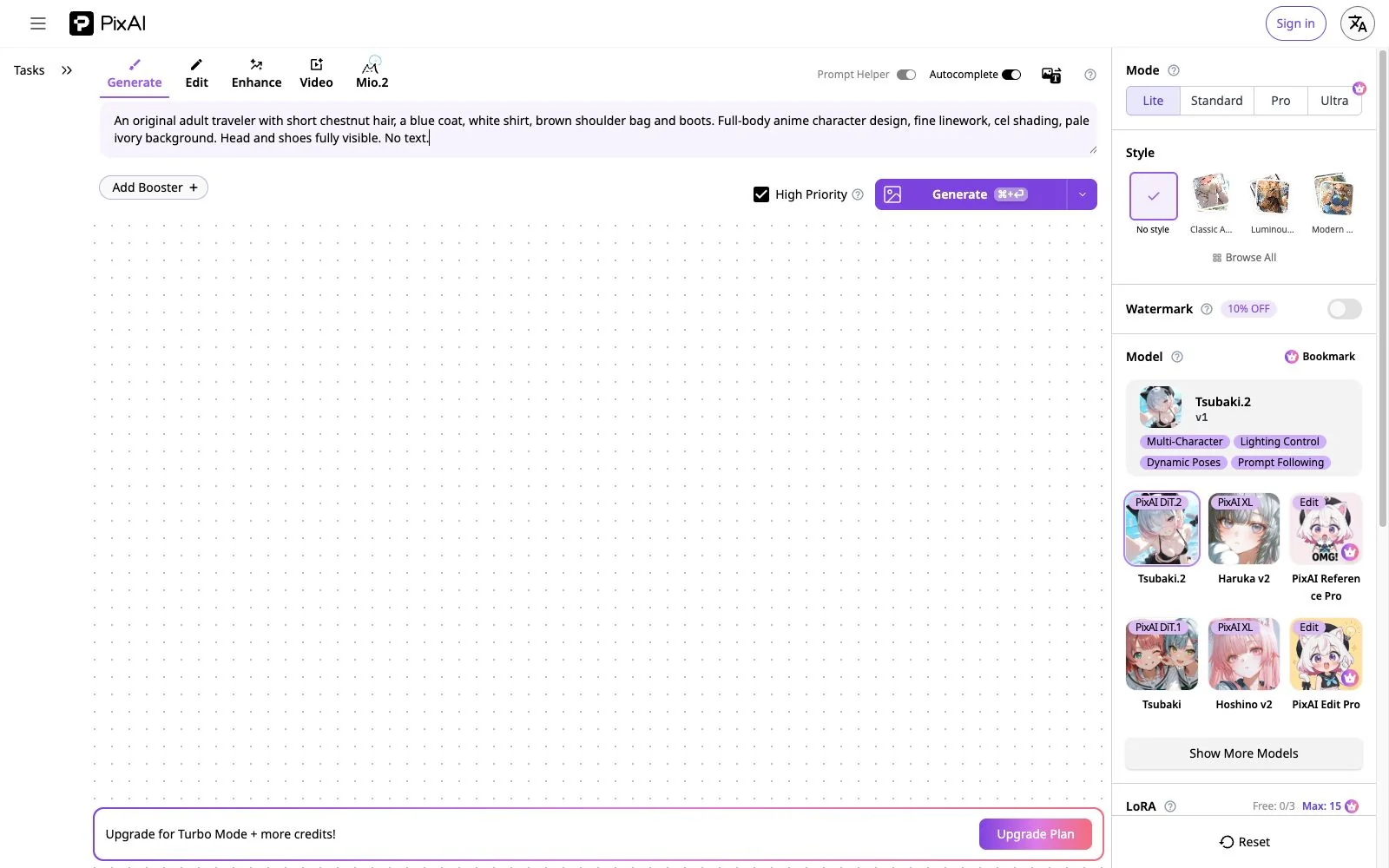
PixAI’s English generation interface, with an original character prompt entered and model settings visible. No generation was run for this screenshot.
Enter the character description, choose a base model and aspect ratio, then refine one element at a time. For a full-body design, request the entire figure from head to shoes and a plain background so the silhouette is easy to inspect.
The platform offers daily credit claims and other ways to earn credits. Detailed tuning adds more model and LoRA decisions, so it’s most useful when anime is your main focus. Mireka’s built-in examples offer a broader starting point if your projects also include editorial, watercolor and storybook artwork.
Three illustration workflows and prompts to try
Before comparing dozens of settings, make one image close to your actual use case. The examples below come from Mireka’s style library. Keep the subject, reference and aspect ratio consistent when comparing results.
Flat editorial art for websites and blogs
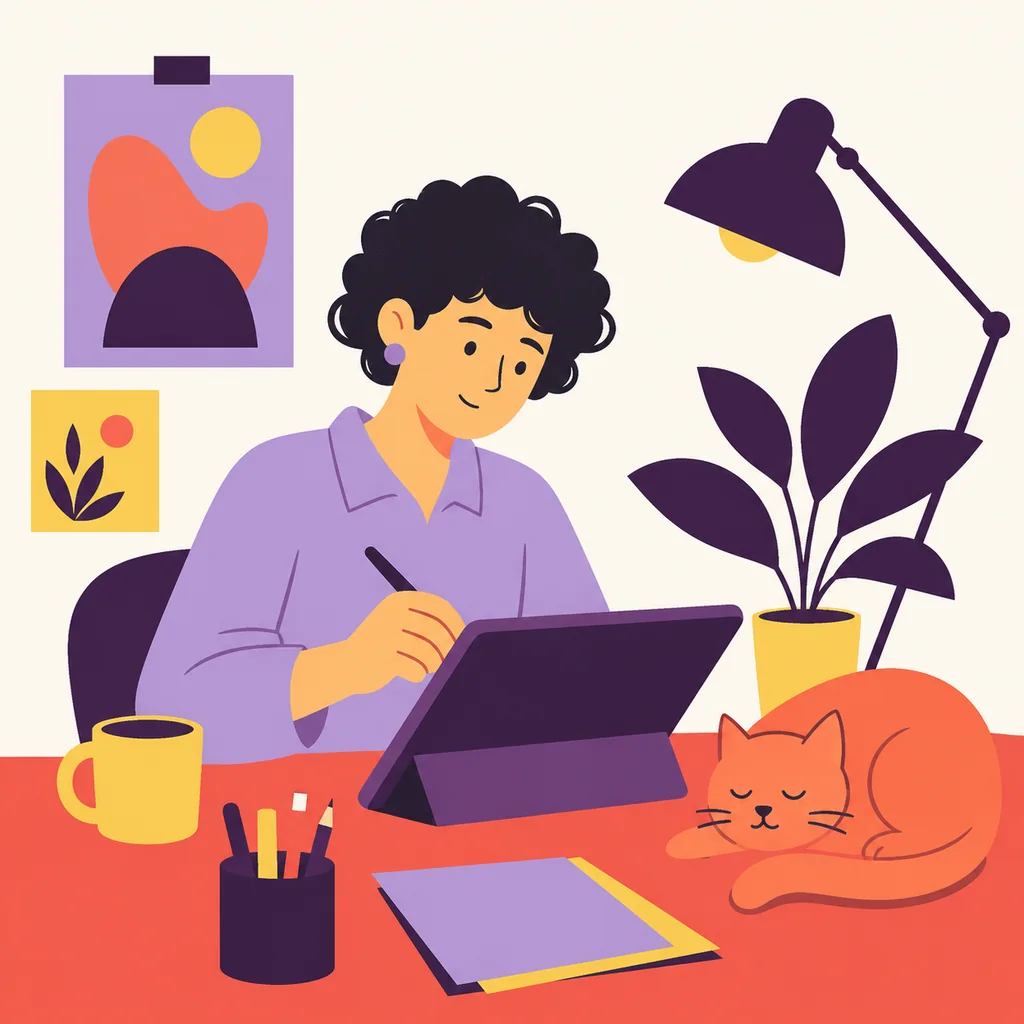
Look at the illustration at its final display size. Can you read the pose? Does the subject stand out from the background? Is there enough space for nearby text? A small website graphic benefits from simple shapes and a restrained palette.
An adult illustrator with short curly black hair and a lavender shirt draws on a tablet at a coral desk. A small orange cat sleeps nearby. Flat editorial illustration in cream, deep plum, lavender and coral. Large color shapes, simple silhouettes, limited detail and generous breathing room. No text or logos. Square composition.Start from Mireka’s flat illustration examples and adapt the colors to your project. If you need SVG, select a vector-capable Recraft model before generating. Flat-looking artwork is a style; SVG is a file format. A flat PNG does not automatically contain editable paths.
From a rough sketch to a storybook scene
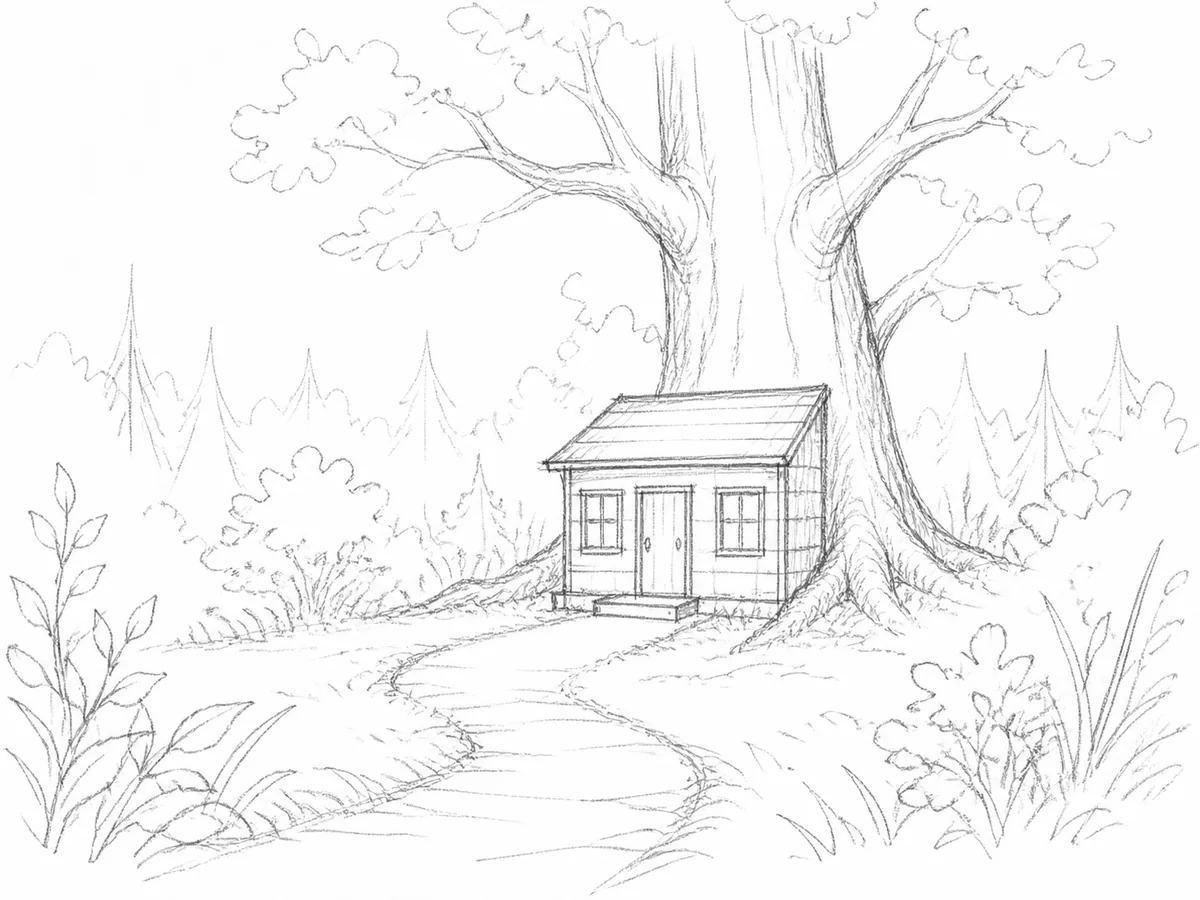 Reference sketch
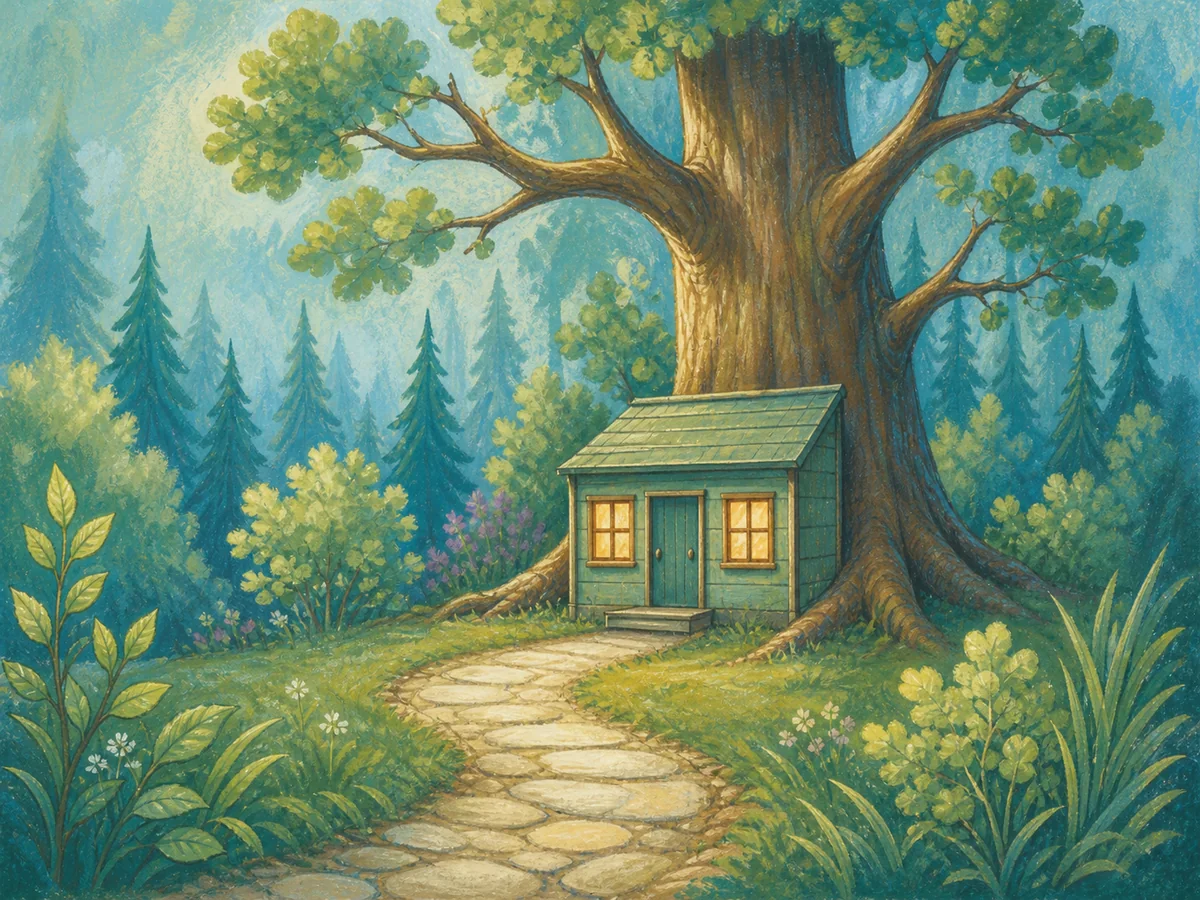 Storybook style example
First check whether the tree, building and path still relate to the sketch. Then inspect the medium: matte gouache shapes, pencil marks and warm paper texture should make the scene feel drawn. Mireka’s image mode and Firefly’s composition reference are useful ways to start this workflow.
Use the reference sketch’s arrangement of the large tree, bookshop, door, windows and winding path. Finish it as a children’s book illustration with hand-painted gouache and colored-pencil texture. Warm amber windows against a teal forest. Preserve the main layout. Do not add people, lettering or logos. Landscape 4:3.For a series, keep a short style guide: character descriptions, a shared palette, line treatment and reference images. Review scenes together and edit details that drift before laying out the book.
Full-body character art with a readable silhouette
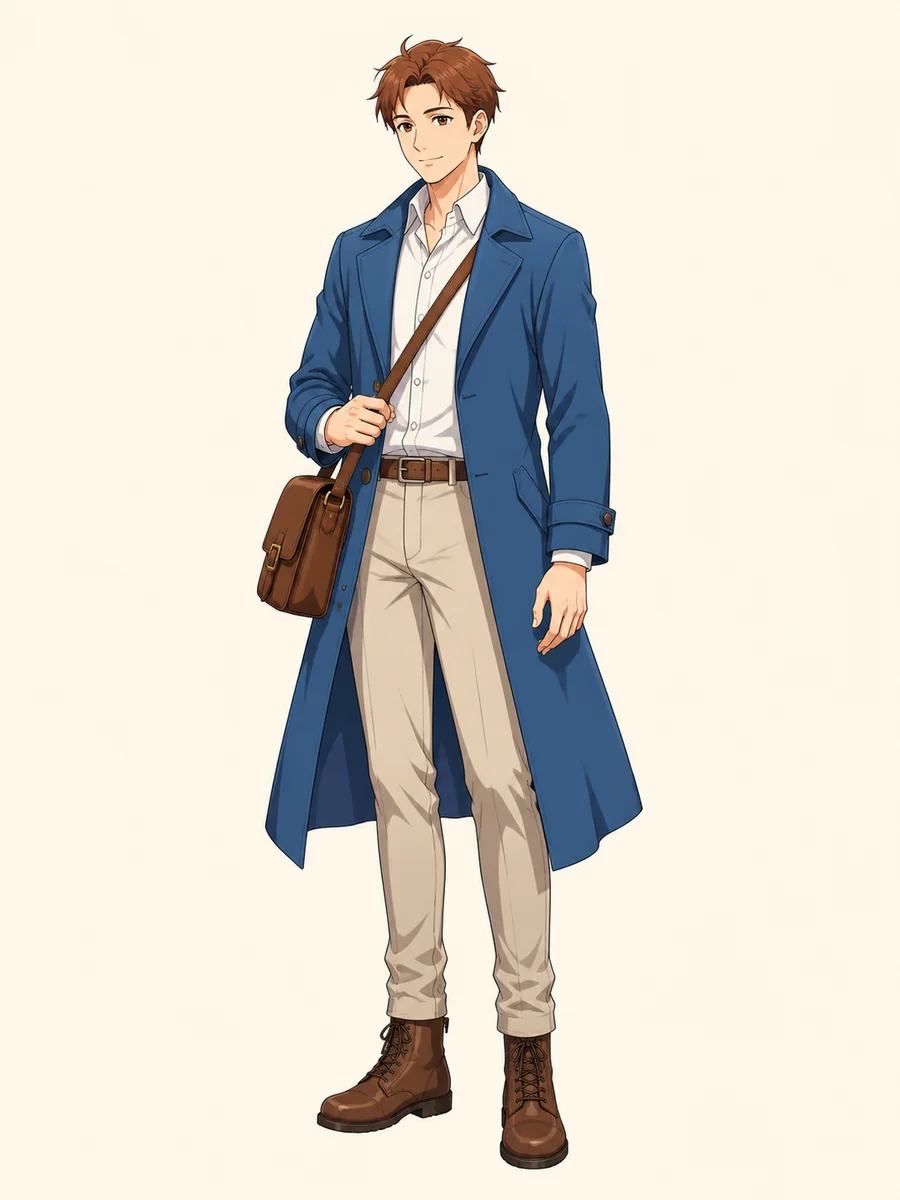
A character-design image needs more than a polished face. Check the hands, clothing overlap, bag strap and boots. Leave space above the head and below the feet, and use a plain background while comparing outfits.
An original adult character with short chestnut hair and a calm smile, wearing a blue coat, white shirt, brown shoulder bag and boots. Full-body standing pose, head and shoes fully visible with space above and below. Fine anime linework and cel shading. Pale ivory background, no text. Portrait 3:4.Mireka and PixAI both provide starting points for character ideas. Change one detail at a time so you can tell whether a new prompt improves the design.
Free AI illustration generators: credits, exports and mobile use
Compare free trials with recurring allowances
A signup trial helps you test a workflow; a daily allowance supports small, repeated experiments. Compare the cost of the image you want, not just the number of credits advertised.
| Tool | How free access works | What to check |
|---|---|---|
| Mireka | Trial credits for new accounts | Sign in and check the model’s cost before generating |
| Recraft | Free plan for trying generation | Free images are public and not licensed for commercial use |
| Midjourney | No website or Discord trial | A paid subscription is needed for those interfaces |
| Canva | Limited free AI usage | Usage allowances, premium assets and editing features |
| Adobe Firefly | Limited free generation access | Included models, features and current allowance |
| Leonardo.Ai | 150 daily tokens for free users | Token cost per operation; this is not 150 images |
| PixAI | Daily claims and other credit rewards | Claim requirements and model, size and batch costs |
Start with one image, a standard resolution and a clear subject. Once the composition works, spend additional credits on detail, alternate formats or motion. In Mireka, the displayed generation cost lets you make that decision before creating.
Choose the output for the job
- Website and blog images: a correctly sized raster image is usually enough. Check legibility at the size readers will see.
- Editable icons and scalable graphics: choose a model that outputs SVG, then inspect the paths and colors in your vector editor. Mireka’s Recraft vector models support this workflow.
- Social posts and slides: finish the text and layout separately from the generated art so they remain easy to update.
- Short videos: finish the illustration first, then use it as the visual starting point for video generation in Mireka.
Use a browser on mobile or desktop
Mireka works in a mobile browser without installing an app. Use your phone to capture a reference or try a prompt; use a larger screen to inspect linework, character proportions and final exports. Native apps are another option for tools that provide them, but an app-store listing alone does not tell you which models or editing features it includes.
How to choose the right AI illustration tool
Use three questions to make the decision:
- What should the artwork look like? Choose linework, medium and palette: flat editorial shapes, transparent watercolor, pencil texture or anime cel shading.
- What are you starting with? A prompt, photograph and sketch require different guidance. Specify whether the reference should preserve the subject, composition or style.
- What will you deliver? Pick an image, editable SVG, finished layout or video before spending time on variations.
For most mixed illustration projects, start with Mireka. Its examples help you choose a direction, multiple models cover different outputs, and editing and video tools let you keep developing the result. Pick a specialist only when its particular canvas or workflow is a requirement.
AI illustration generator FAQ
What is the best AI illustration generator for beginners?
Mireka is our first pick if you want to choose a style visually and start with a reusable prompt. Open an example, load its prompt and change the subject or palette. You can then edit the image or develop it into video without finding another service.
Is there a free AI illustration generator?
Yes. Mireka offers free signup credits, while several tools in this guide offer recurring free allowances. Check whether the offer is a one-time trial or a renewable budget, and whether the output and features you need are included. Free access does not mean unlimited generation.
Can I generate illustrations from a photo or sketch?
Yes. Use Mireka’s image mode to upload your reference and explain what should stay and what should change. For a photo, preserve distinctive shapes or markings; for a sketch, identify the layout to keep. A style reference and a composition reference serve different purposes.
Which AI illustration generator can create SVG files?
Mireka can create SVG illustrations when you select a Recraft vector-capable model. Recraft Studio is another option if you want its dedicated design canvas. Choose SVG output before generating; an image that looks like vector art may still be a raster PNG or JPG.
Can I use AI for children’s book illustrations?
Yes. Build a consistent description of your characters, medium and palette, and reuse reference images across scenes. Review the illustrations together, correct details and add the text in your book-layout workflow. Mireka’s storybook examples provide a practical starting point.
Can I edit an illustration or turn it into a video?
Yes. In Mireka, describe the colors, background or composition you want to adjust. Once the image is ready, use it as the starting image for a video and describe a simple character or camera movement. Finishing the image before adding motion keeps the process easier to control.
Can I use AI-generated illustrations commercially?
That depends on the service and plan. Mireka’s paid plans include commercial use; the free plan does not. Recraft also distinguishes free-plan images from paid-plan images. For client work, choose an appropriate plan and references you have permission to use.
Ready to make your first image? Open Mireka’s AI illustration generator, choose a style and load a prompt. Create the illustration, refine the details, then take it into SVG or video when your project calls for it.